

Recurring tasks
Use recurring tasks for work that returns on a schedule, such as a daily journal, Friday review, or monthly invoice check. The recurring task stores the schedule and details for later dates. Aven keeps one unfinished task for the relevant date instead of filling your queue with future copies.
Each dated task behaves like any other Aven task. You can edit it, add notes or attachments, mark it done, or skip it. Changes to that task stay with that date. Use Edit template when later tasks should use different details.
Recurring schedules use availability and due dates. Read Schedule
tasks first if those settings are unfamiliar. Use the
TUI covers navigation, selection, and command discovery. Shortcuts such
as t r p are keys pressed in sequence.
The RCR- reference identifies the whole recurring task. Each dated task has
its own ordinary task reference.
Create a recurring task
Section titled “Create a recurring task”Press a to open the task composer, then type a repeating expression in
Schedule:
dailyevery weekday at 09:00every Friday at 09:00fortnightlyevery 3 weeks, no duemonthly, starting 2026-08-01
Press Enter on Schedule when a structured editor is easier. Choose
Repeating, then set the repetition pattern, availability time, due setting,
and start date. The schedule uses your device’s time zone.
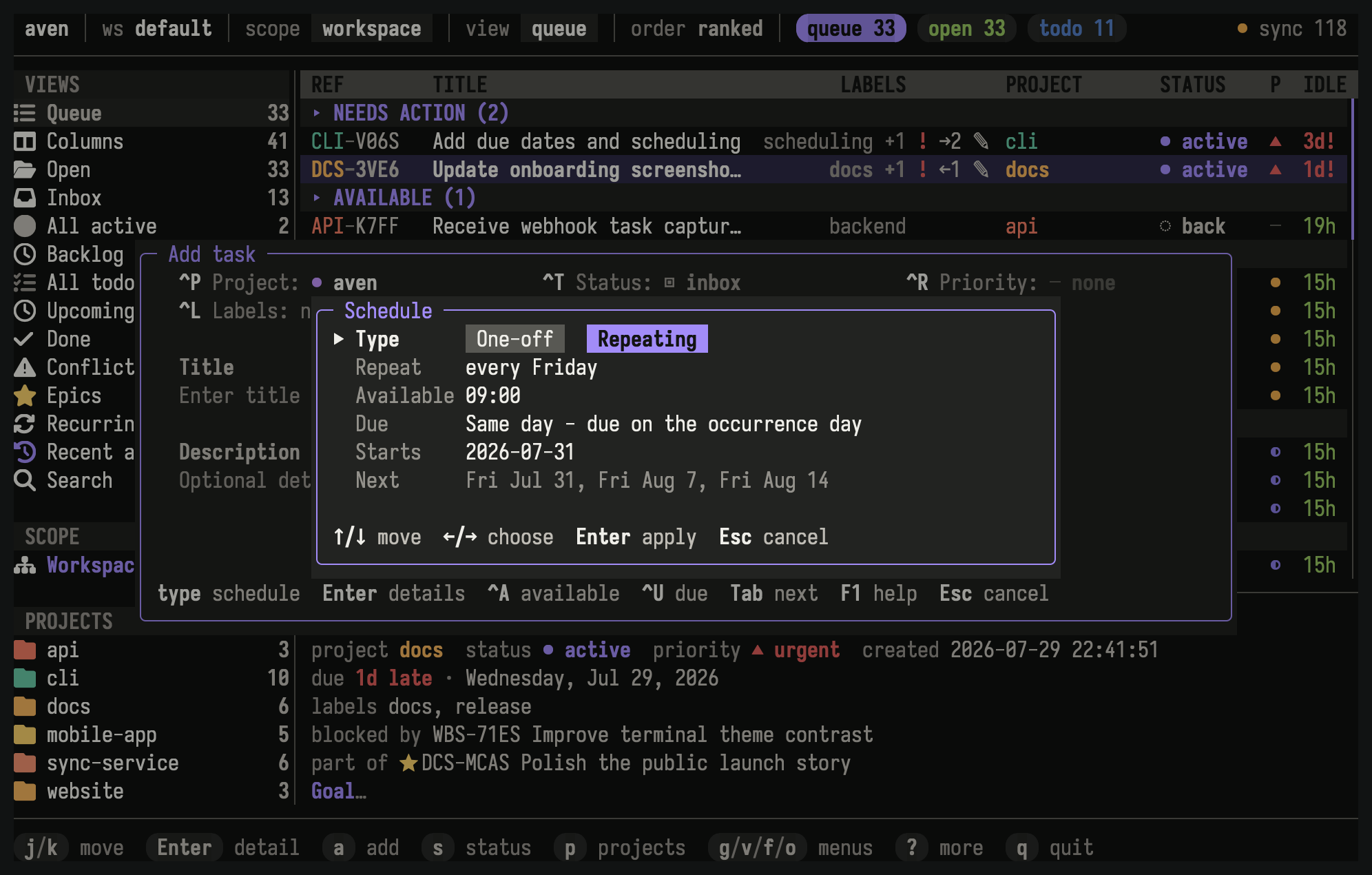
The editor shows the weekly pattern, availability time, due setting, start date, and upcoming occurrences.
Choose a schedule
Section titled “Choose a schedule”| Schedule | Example |
|---|---|
| Every day | every day |
| Monday through Friday | every weekday |
| Weekly | every Friday |
| Every two weeks | fortnightly |
| Selected weekdays | every Monday and Thursday |
| Every N weeks | every 3 weeks |
| Selected days every N weeks | every 3 weeks on Monday and Thursday |
| Monthly | every month |
Weeks begin on Monday. A weekly or fortnightly schedule without an explicit weekday uses the start date’s weekday.
Monthly schedules keep their original day number. When a month is shorter, Aven uses its last day without changing the schedule. A task that starts on January 31 returns on February 28 or 29, then March 31.
Choose when tasks become available and due
Section titled “Choose when tasks become available and due”The scheduled date controls which day a task belongs to. An optional availability time controls when it enters normal task lists on that date. Before then, you can find it under Upcoming.
Recurring tasks use one of two due settings:
- Same day makes the scheduled date the due date.
- No due date leaves each task without a deadline.
See Scheduling tasks for the underlying availability and due-date model.
Find recurring tasks
Section titled “Find recurring tasks”Open Recurring Tasks from the sidebar or press v u. Active and paused
recurring tasks appear together by default. Press f r to cycle lifecycle
filters for active, paused, stopped, or all recurring tasks. Press Enter on a
recurring task to inspect its schedule, current task, next date, and available
actions.
Finish, skip, or miss a task
Section titled “Finish, skip, or miss a task”When you finish the current task, Aven creates the next one immediately and defers it to its scheduled date. It stays out of your queue until it becomes available, but you can see it early under Upcoming.
Canceling or choosing Skip means you are not doing this one. Aven records the scheduled date as skipped, then continues with the next task. Use Skip for “not this time.” Use Stop when the work should never repeat again.
If a scheduled date passes without being finished or skipped, Aven records it as missed and moves on. Missed work stays in the recurring task’s history instead of accumulating in your queue.
Aven does not need to remain open overnight. When you return after several scheduled dates have passed, opening a task list or Recurring Tasks catches up and shows the task for the relevant date.
The current task cannot be deleted, and a finished or skipped task cannot be
reopened later. Press u immediately after an accidental change. Otherwise,
manage the recurring task with Skip, Pause, or Stop so its history remains
meaningful.
Pause, resume, or stop
Section titled “Pause, resume, or stop”The recurring-task detail footer shows the actions available for its state:
| Key | Action |
|---|---|
Enter |
Open the current dated task, when one exists |
e |
Edit template |
p |
Pause an active recurring task or resume a paused one |
h |
Show history |
s |
Stop an active or paused recurring task permanently |
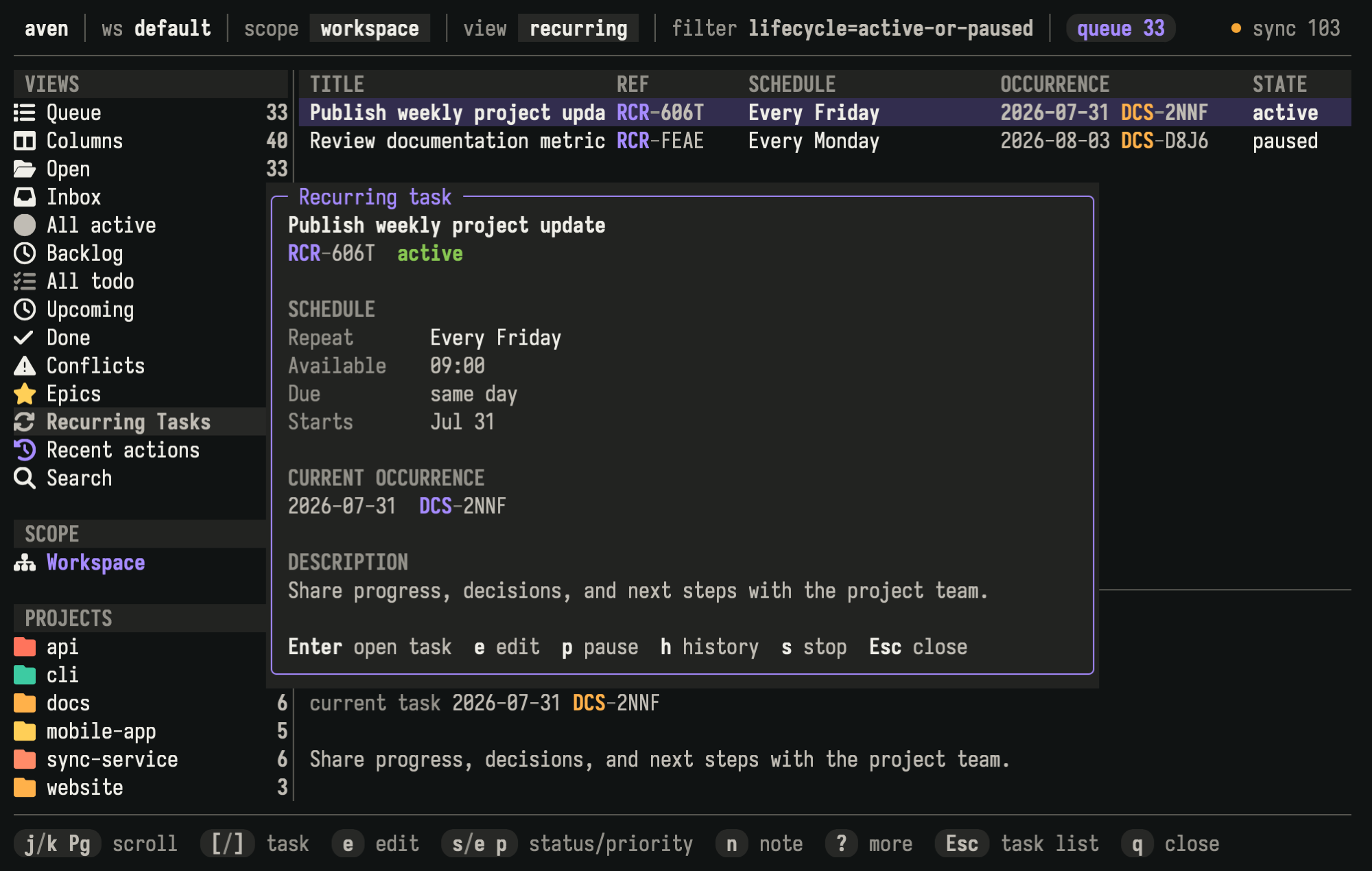
Recurring-task detail shows the schedule, current dated task, template description, lifecycle state, and available actions.
Pausing hides the current task and suppresses scheduled dates until you resume. Resuming continues the schedule without creating tasks for the paused period. If the preserved task’s scheduled date is still relevant, it returns. If that date has passed, Aven continues from the next applicable date.
Stopping ends the schedule permanently. The stop prompt lets you choose Keep current occurrence to leave the current task available as the last one, or Skip current occurrence to record it as skipped.
The t r shortcuts work from other task lists when a recurring task or one of
its dated tasks is selected:
| Key | Action |
|---|---|
t r k |
Skip the current task |
t r e |
Edit template |
t r p |
Pause |
t r r |
Resume |
t r s |
Stop |
t r h |
Show history |
Change future tasks
Section titled “Change future tasks”Choose Edit template, or press t r e, to change the reusable settings for
tasks created later. This does not rewrite the current task or history.
You can change the title, description, project, starting status, priority, labels, availability time, and due setting. The repetition pattern, start date, and time zone define the schedule and cannot be edited. Stop the recurring task and create another one when those properties need to change.
Review history
Section titled “Review history”History shows completed, skipped, and missed dates along with pause periods.
Open a recurring task and choose Show history, or press t r h.
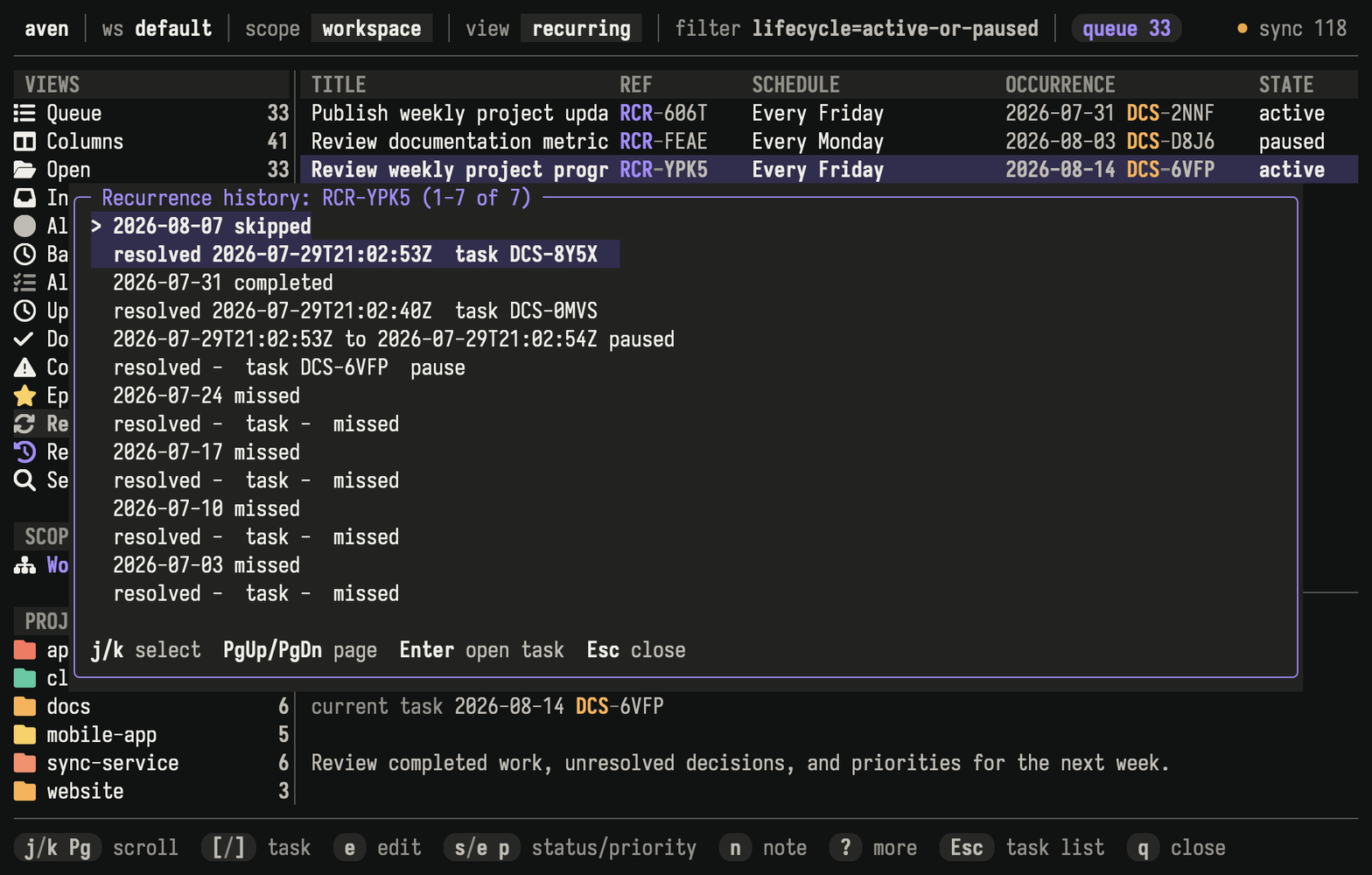
History records completed, skipped, and missed dates, along with periods when the schedule was paused.
Done lists and search results group past dated tasks by recurring task. See the
aven list and
aven search references when you need every
dated task as a separate result.
Sync across devices
Section titled “Sync across devices”Recurring schedules, dated tasks, and history sync with the rest of your Aven data. You can use them on several synchronized devices. When two devices create the task for the same scheduled date, Aven recognizes it as the same task instead of keeping duplicates.
Completing the same dated task on two devices merges without requiring a choice. If one device completes it while another skips it, Aven keeps the next task moving forward and records a conflict so you can choose the correct history. Conflicting Pause, Resume, or Stop changes also appear for review and prevent additional tasks until resolved.
See Resolve conflicts for the review workflow.
Related pages
Section titled “Related pages”- Scheduling tasks explains the availability and due-date model used by each dated task.
- Using the TUI covers navigation, selection, and command discovery.
- Sync across devices covers synchronization and conflict handling.
Reference
Section titled “Reference”See aven add for command-line creation,
aven recur for management, and
aven list for grouped output.