

Using the TUI
The TUI is aven’s keyboard-driven interface for managing tasks locally.
aven tuiUse it to find work, capture tasks, edit them, and inspect their details. See Organizing tasks for task structure, Schedule tasks for availability and deadlines, and Recurring tasks for repeating work.
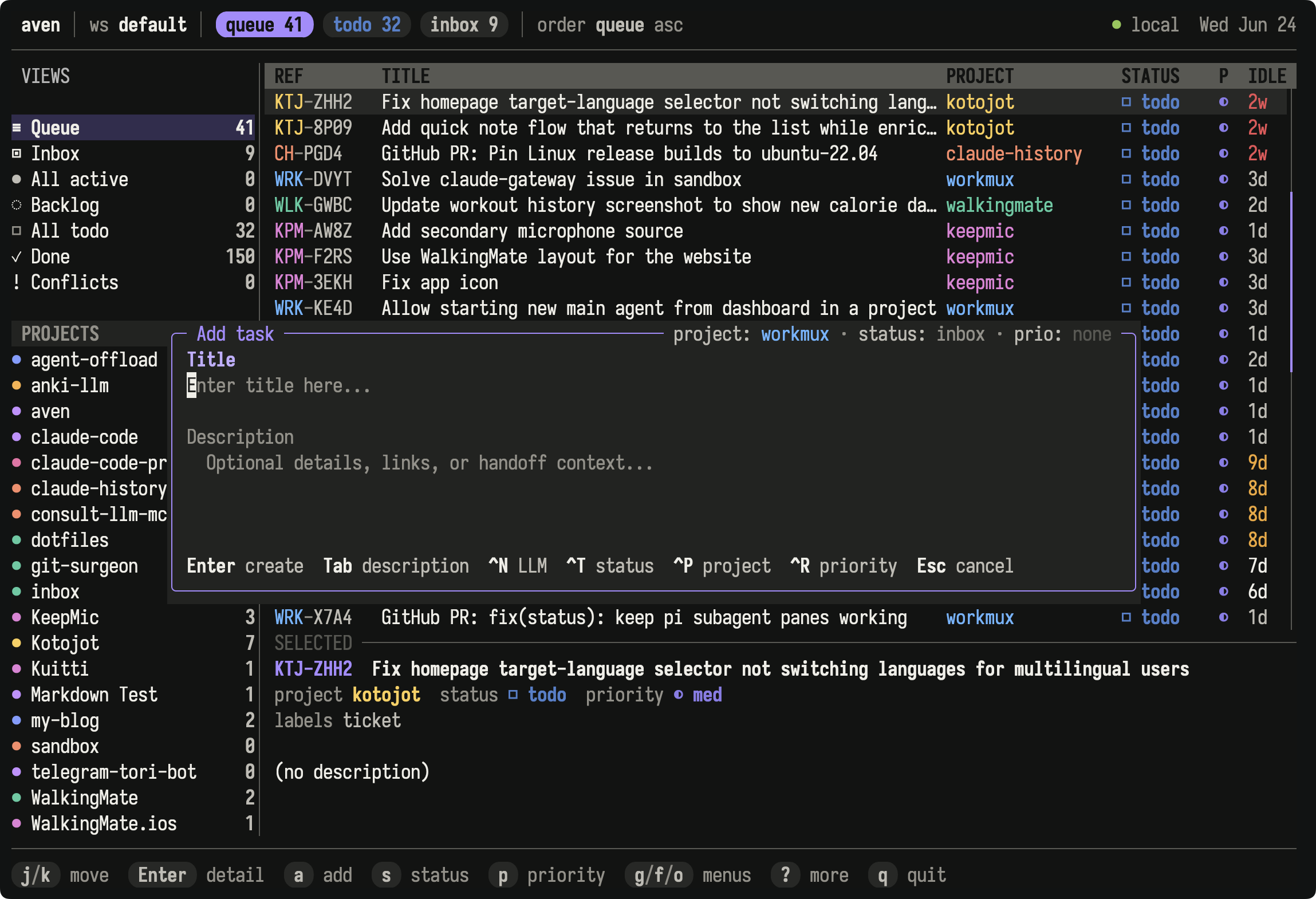
Queue groups open work across the active workspace. The preview below the list shows details for the selected task.
Use ? for commands available in the current mode. Use : to search the complete command catalog by name or description. Custom TUI commands can add trusted local programs to this catalog.
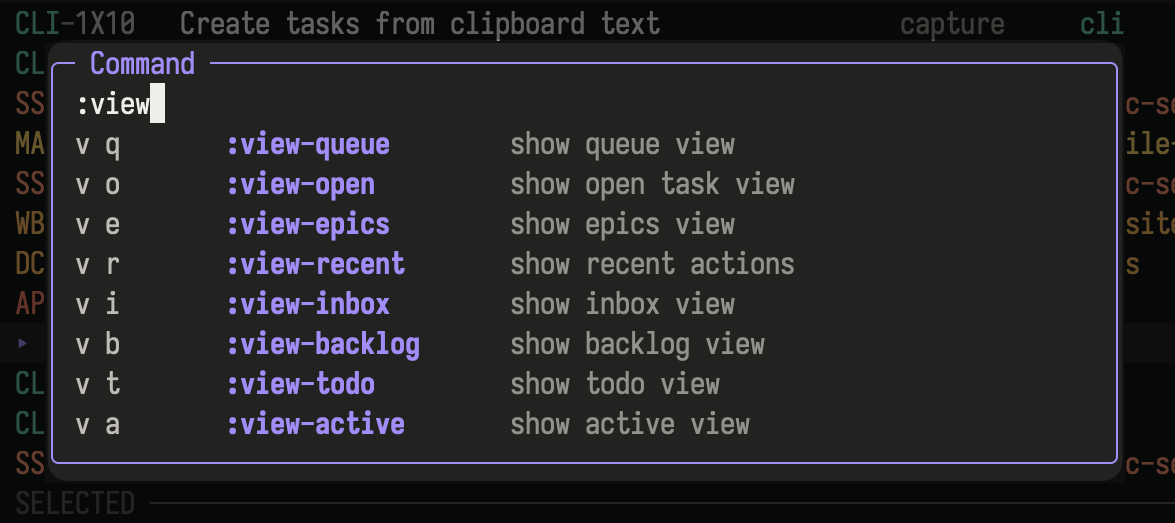
The command palette searches the catalog used by contextual help and prefix hints.
Find work
Section titled “Find work”Queue is the default view. It groups open work by what needs attention across the active scope. See Concepts for queue groups, statuses, priorities, availability, due dates, dependencies, and epics.
Use the sidebar or the v command family to switch views.
| Goal | View | Open with |
|---|---|---|
| Decide what needs attention | Queue | v q |
| Move work through lifecycle lanes | Columns | v l |
| See all unfinished work | Open | v o |
| Triage captured work | Inbox | v i |
| Review work saved for later | Backlog | v b |
| See committed work | Todo | v t |
| See work in progress | Active | v a |
| Review deferred work by availability | Upcoming | Sidebar or aven tui --view upcoming |
| Review completed and canceled work | Done | v d |
| Resolve synchronization conflicts | Conflicts | v c |
| Plan with parent tasks | Epics | v e |
| Manage repeating schedules | Recurring Tasks | v u |
| Audit recent changes | Recent actions | v r |
| Return to accepted search results | Search results | v s |
Workspace scope shows tasks across projects. Project scope narrows every view to one project.
| Key | Action |
|---|---|
g a |
Show all projects in the workspace |
g p |
Choose a project scope |
g w |
Switch workspace |
The project and workspace pickers accept typing immediately to filter their
options. Use Up and Down to move, Enter to choose, and Esc to cancel.
The header and sidebar show the active workspace, scope, view, and filters.
Search, filter, and order
Section titled “Search, filter, and order”Press / to search titles, descriptions, projects, labels, notes, metadata, refs, and attachment text. Results update while you type. Enter opens the selected preview result, while Tab accepts the query and opens Search results.
Filters constrain the current view. Useful filter commands include:
| Key | Action |
|---|---|
f l |
Filter by label |
f p |
Filter by priority |
f r |
Cycle recurring lifecycle |
f x |
Cycle deleted-task visibility |
f c |
Clear filters |
Press o to choose ordering. Queue uses aven’s attention score. Other views can order by fields such as availability and due date.
For shell shortcuts that open an initial view, project, filter, or task, see aven tui.
Capture tasks
Section titled “Capture tasks”Press a to open the task composer. Project, status, priority, labels, availability, due date, natural-language schedule, title, and description stay visible as one form. The active field has a ▶ marker, so focus remains clear without relying on color. The project picker’s Infer option uses the project mapped to the current directory. Choose a named project when the task belongs elsewhere.
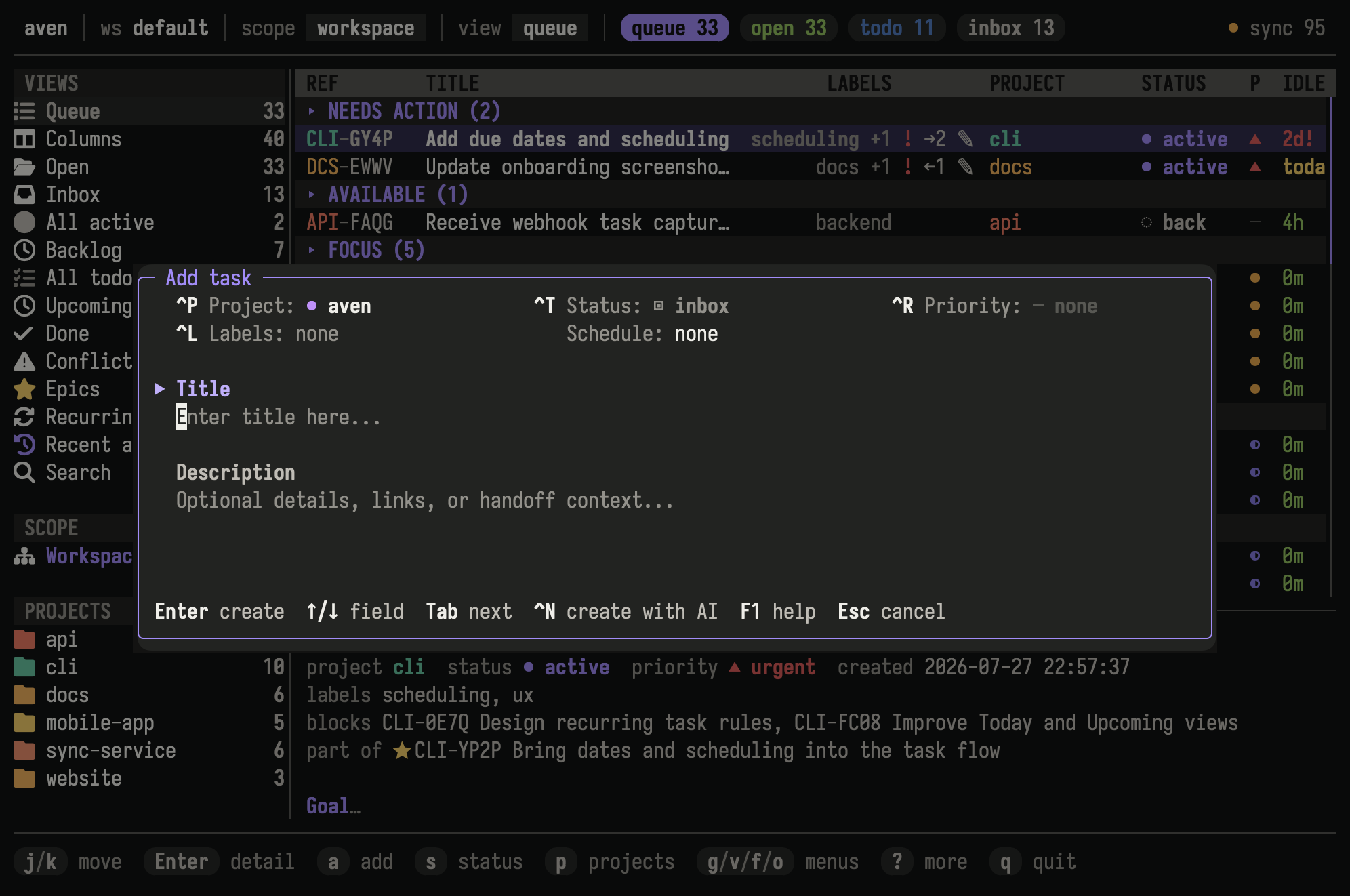
Set task metadata, scheduling, title, and description in the same form.
Enter opens the focused metadata control, creates from the title, and inserts a newline in the description. Ctrl-Enter creates from any field in terminals that report modified Enter keys. Ctrl-s is the portable create shortcut.
Press Ctrl-g to create the task and immediately start another. The next draft retains the project, status, priority, and labels, while clearing task-specific content such as the title, description, schedule, and attachments. This shortcut applies to standalone, non-repeating tasks.
Set a schedule
Section titled “Set a schedule”The Schedule field accepts natural expressions such as tomorrow,
due next Friday, or every Friday at 09:00. Press Enter on the field for a
structured editor with One-off and Repeating modes.
See Scheduling tasks for availability and deadlines, and Recurring tasks for repeating schedules.
Create with AI
Section titled “Create with AI”Press Ctrl-n when the visible title and description contain rough notes, pasted context, or dictated input. The configured task-intake agent produces a structured draft for review. See agent.task_intake.
Attach images
Section titled “Attach images”Copy a PNG, JPEG, GIF, or WebP image and press Ctrl-v, or paste a local image path or file:// URL. Images remain attached to the draft when validation fails.
If clipboard image paste is unavailable, save the image and paste its path. See terminal tips for terminal-specific preview setup, Configuration for image optimization, and aven attachment for limits and command-line management.
Triage and edit tasks
Section titled “Triage and edit tasks”Direct shortcuts cover frequent lifecycle changes:
| Key | Action |
|---|---|
s |
Choose status |
d |
Mark done |
x |
Mark canceled |
n |
Add a note |
u |
Undo the latest completed TUI mutation |
Use the e family to edit task fields:
| Key | Field |
|---|---|
e t |
Title |
e d |
Description |
e j |
Project |
e p |
Priority |
e a |
Availability |
e u |
Due date |
e l |
Labels |
The t family contains lifecycle, priority, relationship, recurrence, delete, and restore actions. Press t and follow the footer hints, or search by action name with :.
Delete and restore
Section titled “Delete and restore”t D deletes the selected task after confirmation. Deleted tasks stay available through the f x filter. Select a deleted task and press t R to restore it.
Canceling with x preserves the task as an intentional outcome. Deleting removes it from ordinary task views.
Mark and change several tasks
Section titled “Mark and change several tasks”Press Space to mark or unmark the selected task. The footer shows the marked count.
| Key | Action |
|---|---|
Space |
Toggle the selected task’s mark |
t V |
Toggle marks on visible tasks |
t C |
Clear all marks |
Status, priority, project, labels, availability, due date, delete, and Columns moves apply to the marked set when marks exist. A batch mutation creates one undo step.
Columns
Section titled “Columns”Columns arranges tasks into configurable lifecycle lanes.
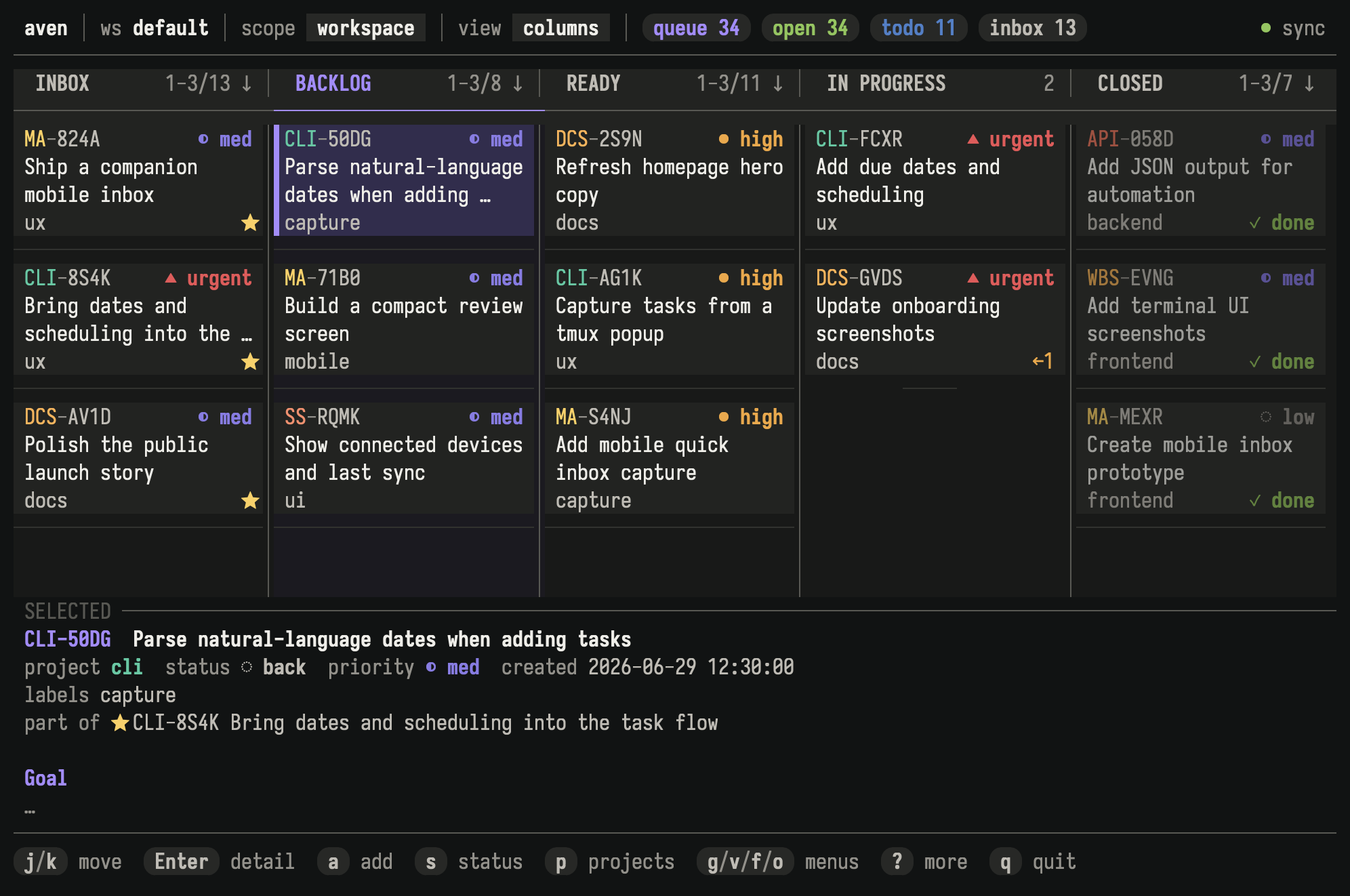
Columns arranges tasks into lifecycle lanes and shows details for the selected task.
Use v l to open Columns. Up and down move within a lane. Left and right switch lanes. Press < or > to move the selected or marked tasks one lane, or m to choose a destination.
Moving a task into a lane assigns the lane’s first configured status. Choosing its existing lane preserves its exact status. This matters when a lane groups several statuses, such as done and canceled.
Press g d to toggle the selected-task preview. Configure lane names and status groups under tui.columns.
Task detail
Section titled “Task detail”Press Enter on a task to open detail.
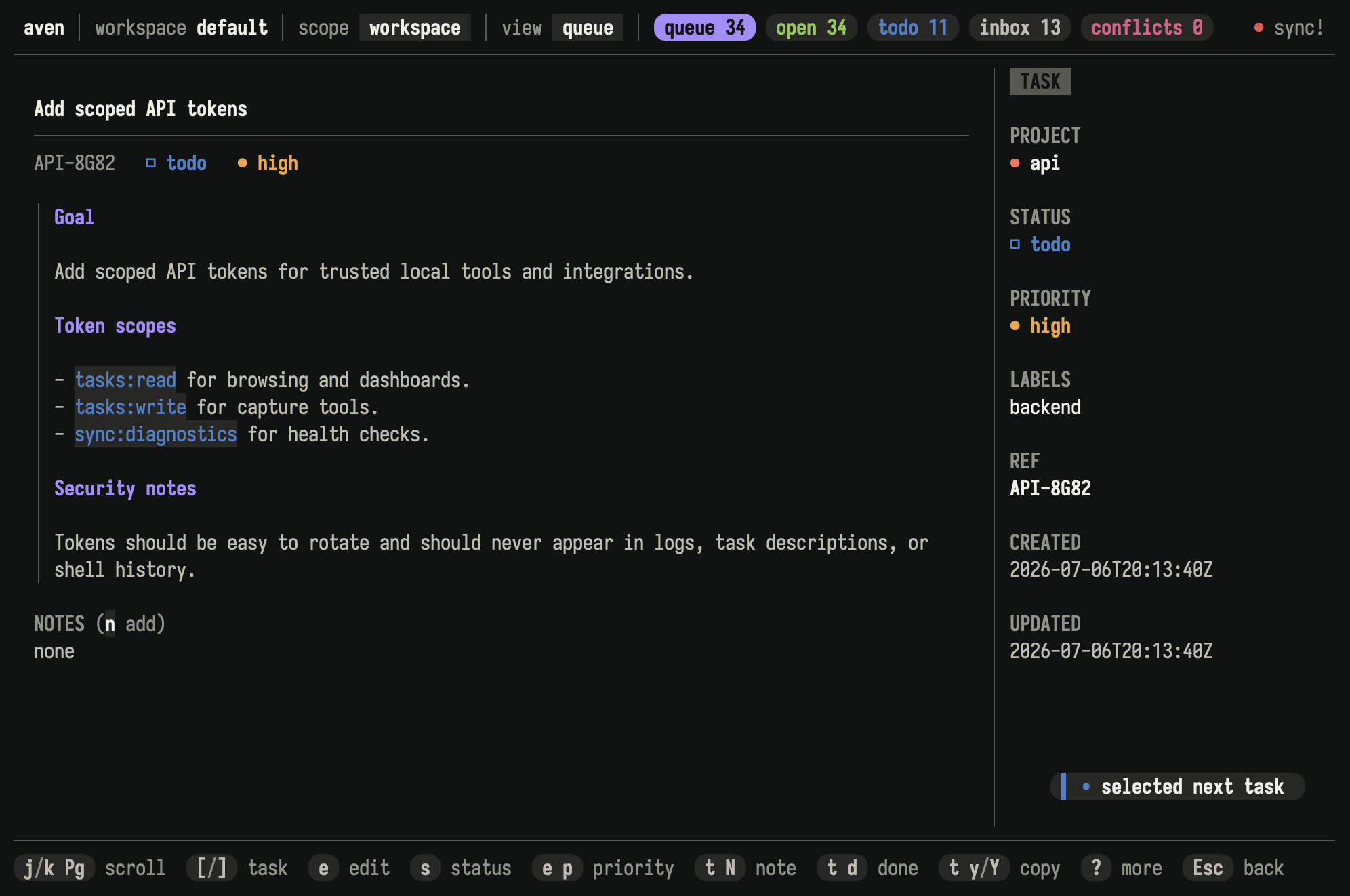
Task detail shows Markdown descriptions, notes, relationships, attachments, and editable metadata.
Use [ and ] to switch tasks without returning to the list.
Copy task information
Section titled “Copy task information”The y family copies task information from either the list or detail:
| Key | Copies |
|---|---|
y r |
Display ref, such as APP-7KQ9 |
y i |
Durable task ID |
y t |
Title |
y d |
Description |
y a |
Title and description |
y n |
Notes |
y m |
Complete task report as Markdown |
When tasks are marked, y r, y i, and y t copy one display ref, durable ID, or title per task, separated by newlines in visible list order. Description, combined text, notes, and Markdown report copies are single-task actions and are unavailable while marked-task mode is active.
The Markdown report includes the title, display ref, status, project, priority, labels, scheduling metadata, description, notes, relationships, recurrence details, unresolved conflict variants, and attachment metadata. Attachment files are not included. It also records the durable task ID, workspace, and creation and update times.
In detail, drag across rendered title or description text and press y to copy only that selection.
Drag across rendered task text and press y to copy the selection.
Publish a task report as a GitHub gist
Section titled “Publish a task report as a GitHub gist”From task detail, press t g and confirm to publish the complete Markdown task report as a secret GitHub gist. This runs the authenticated GitHub CLI and sends the report’s task content to GitHub over the network. A secret gist is unlisted rather than private: anyone with its URL can view it. After GitHub creates the gist, aven copies its URL to the clipboard.
This action requires an installed and authenticated gh command. The confirmation appears before any task content is published.
Image attachments
Section titled “Image attachments”Attachments appear below the description. iTerm2, Kitty, WezTerm, and Ghostty can show inline previews. Other terminals show a text label.
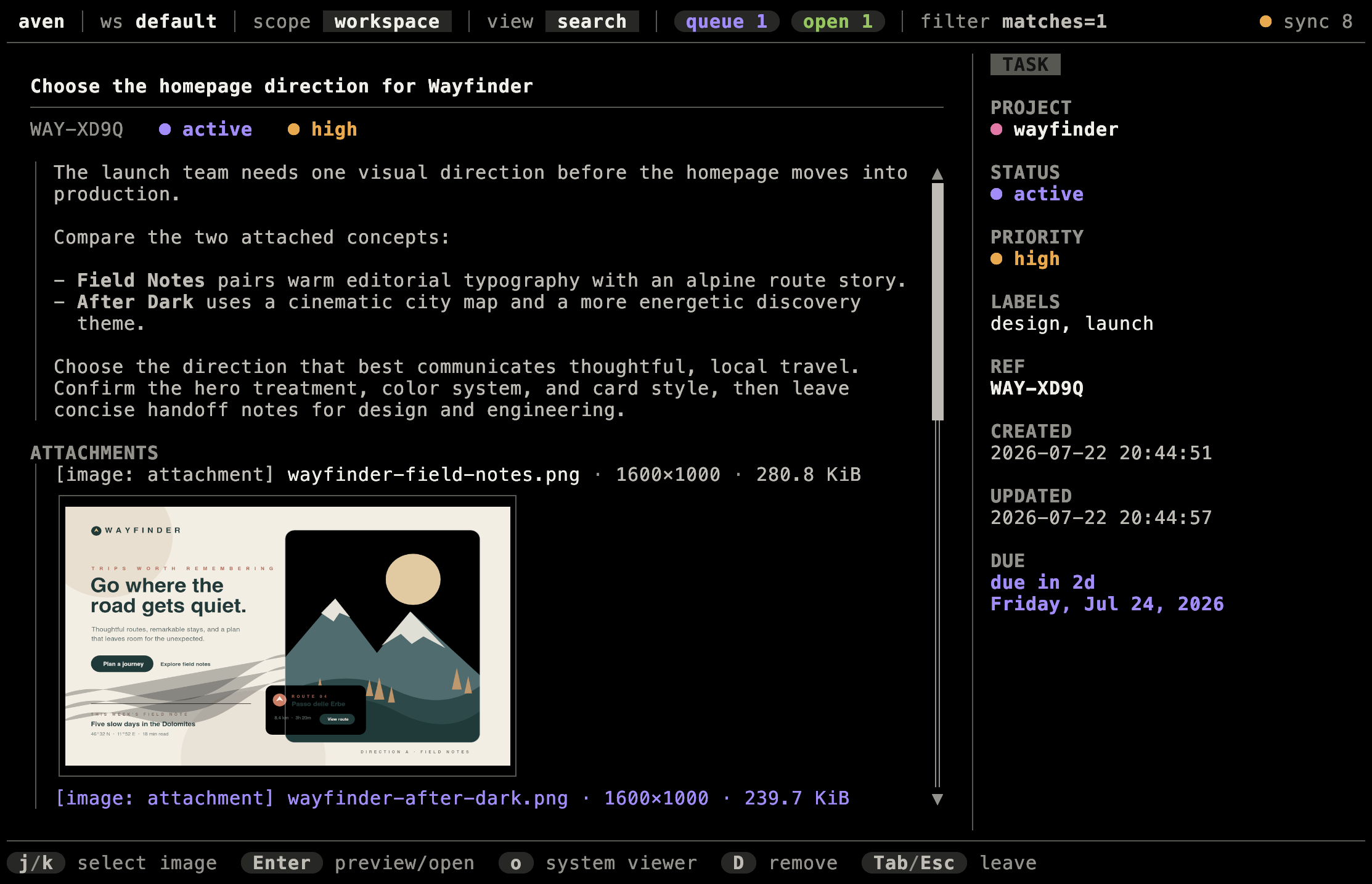
Kitty showing an inline image attachment preview in task detail.
Open the preview to move between attachments, open one in the system viewer, or delete one. To save an image as a regular file, use aven attachment get.
Projects and relationships
Section titled “Projects and relationships”Press p to administer projects. Label administration uses L n to create,
L b to browse names and usage, L r to rename, and L D to delete. Rename
and delete update tasks and recurring templates that use the label. The t B and
t U actions add and remove blockers. Epic membership actions live under t c,
and v e opens the Epics view.
See Organizing tasks for choosing among workspaces, projects, labels, epics, and dependencies.
Recurring tasks
Section titled “Recurring tasks”Press v u to open Recurring Tasks. Each row shows its schedule, next date, and
state. Press Enter on a recurring task to open its detail; the footer shows the
actions available for that state. The t r family also works from a selected
recurring task or one of its dated tasks.
See Recurring tasks for schedules, lifecycle actions, and
history. See aven recur for CLI management.
Conflicts and sync
Section titled “Conflicts and sync”The header shows synchronization state. Press v c to open tasks with unresolved field conflicts, then use the c family to inspect and resolve them.
See Sync across devices for setup, transport, and conflict handling. See Back up and restore for recovery workflows.
Run aven from tmux
Section titled “Run aven from tmux”Bind the full TUI, the composer, or both to tmux popups:
bind C-a display-popup -E -d '#{pane_current_path}' -w 80% -h 80% 'aven tui'bind t display-popup -E -d '#{pane_current_path}' -w 120 -h 30 'aven tui --add-task-only'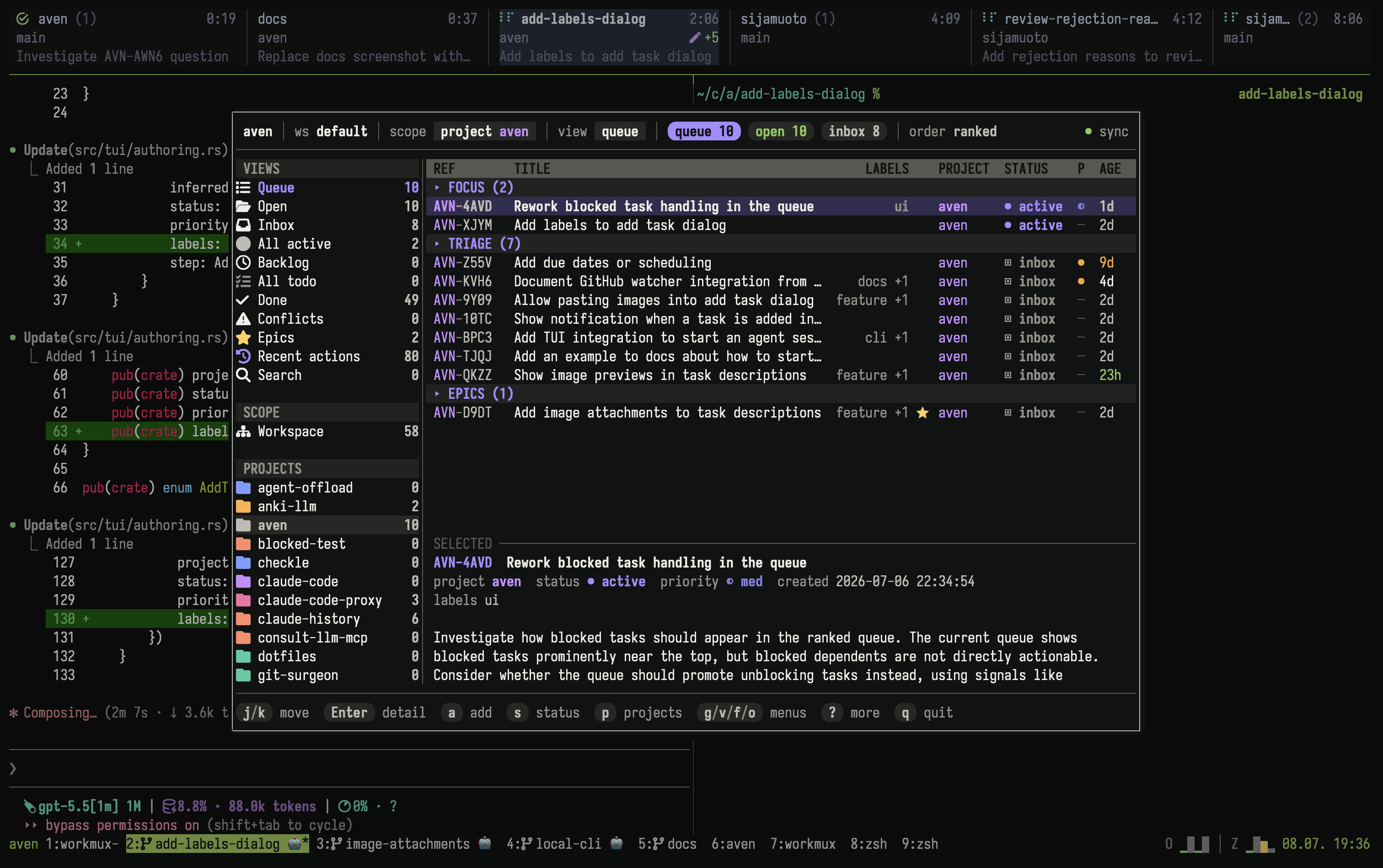
The full TUI opens over the current tmux pane.
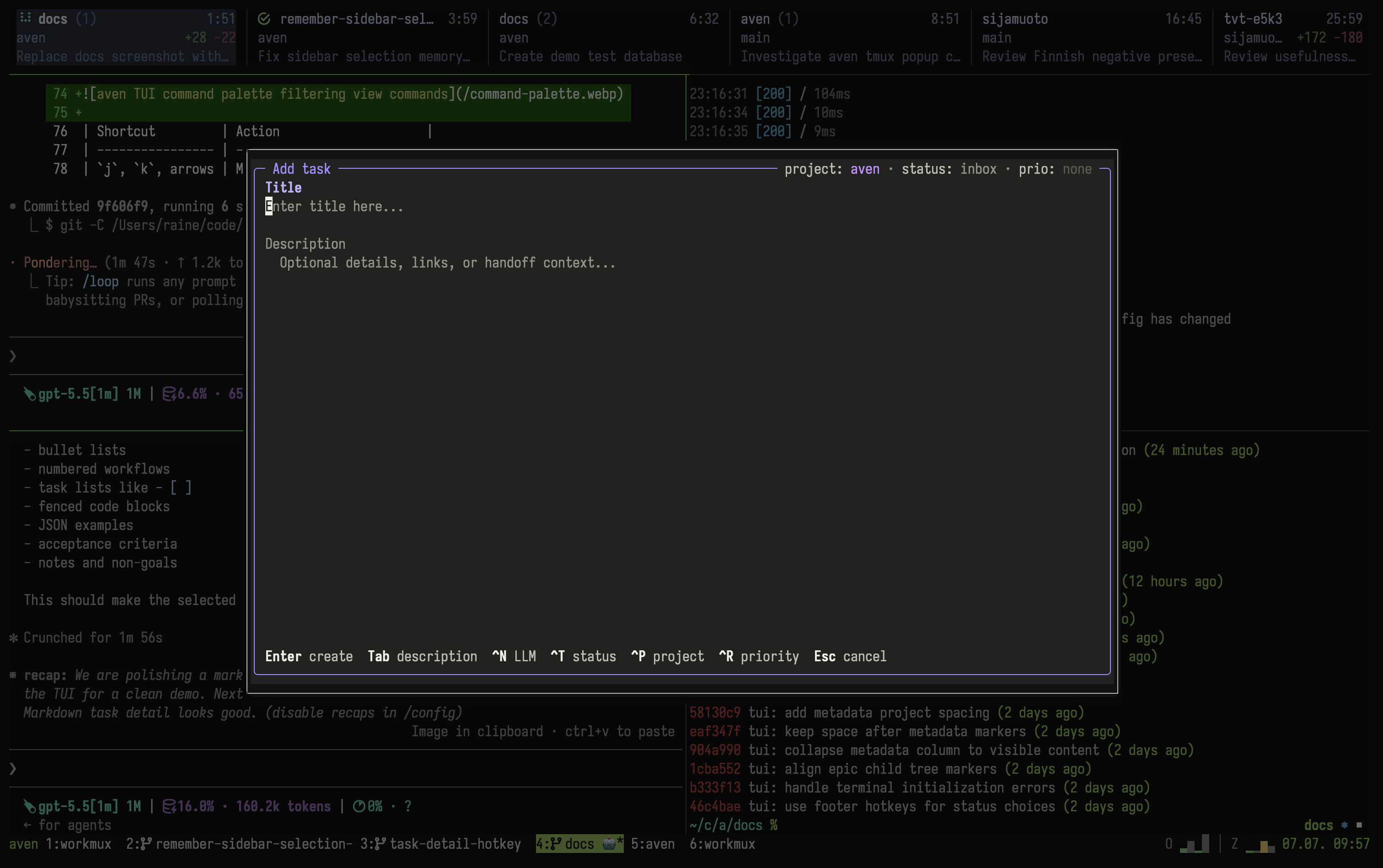
A smaller tmux popup opens directly into the task composer.
See terminal tips for modified-key and tmux configuration.
Mouse support
Section titled “Mouse support”Mouse actions cover the same common outcomes as keyboard commands:
- Click the sidebar or header to change view, scope, project, filter, or ordering.
- Double-click a task to open detail.
- In Columns, click a lane header to move selected or marked tasks, or right-click a task to choose status.
- Click an inline image to open its TUI preview, or its text label to use the system viewer.
- Scroll task detail with the mouse wheel.
Discover commands
Section titled “Discover commands”The in-app command catalog is the authoritative shortcut reference:
?lists commands available in the current mode.:searches command names and descriptions.- Prefix keys show their available continuations in the footer.
| Prefix | Family |
|---|---|
g |
Navigation, scope, and workspace |
v |
Views |
f |
Filters |
o |
Ordering |
e |
Edit task fields |
t |
Task lifecycle and relationships |
y |
Copy task information |
p |
Project administration |
L |
Label administration |
c |
Conflict resolution |
C |
Configuration |
Reference
Section titled “Reference”- Concepts defines the task model behind the interface.
- Work with agents connects coding agents and chat integrations to Aven.
- Custom TUI commands documents local programs, JSON task context, and command lifecycle settings.
- Command reference documents CLI equivalents and input grammar.
- Configuration covers workspace routes, project mappings, sync defaults, and task-intake configuration.
- Terminal tips covers terminal input, tmux, and image previews.