

Scheduling tasks
Availability controls when a task appears in normal work views. A due date records its deadline. You can use either setting on its own or combine them.
| Setting | Meaning |
|---|---|
| Availability | Keep the task out of normal work views until a date or time. |
| Due date | Record the deadline and surface the task as it approaches or becomes overdue. |
If the composer, task selection, marking, or command discovery are unfamiliar,
start with Using the TUI. Shortcuts such as e a are keys pressed in
sequence.
Set a schedule while creating a task
Section titled “Set a schedule while creating a task”Press a to open the task composer. Type a friendly expression in
Schedule:
tomorrowavailable tomorrow at 9amdue next Fridayavailable tomorrow, due next Friday
Press Enter on Schedule when a structured editor is easier. Choose
One-off, then set an availability value, a due date, or both.
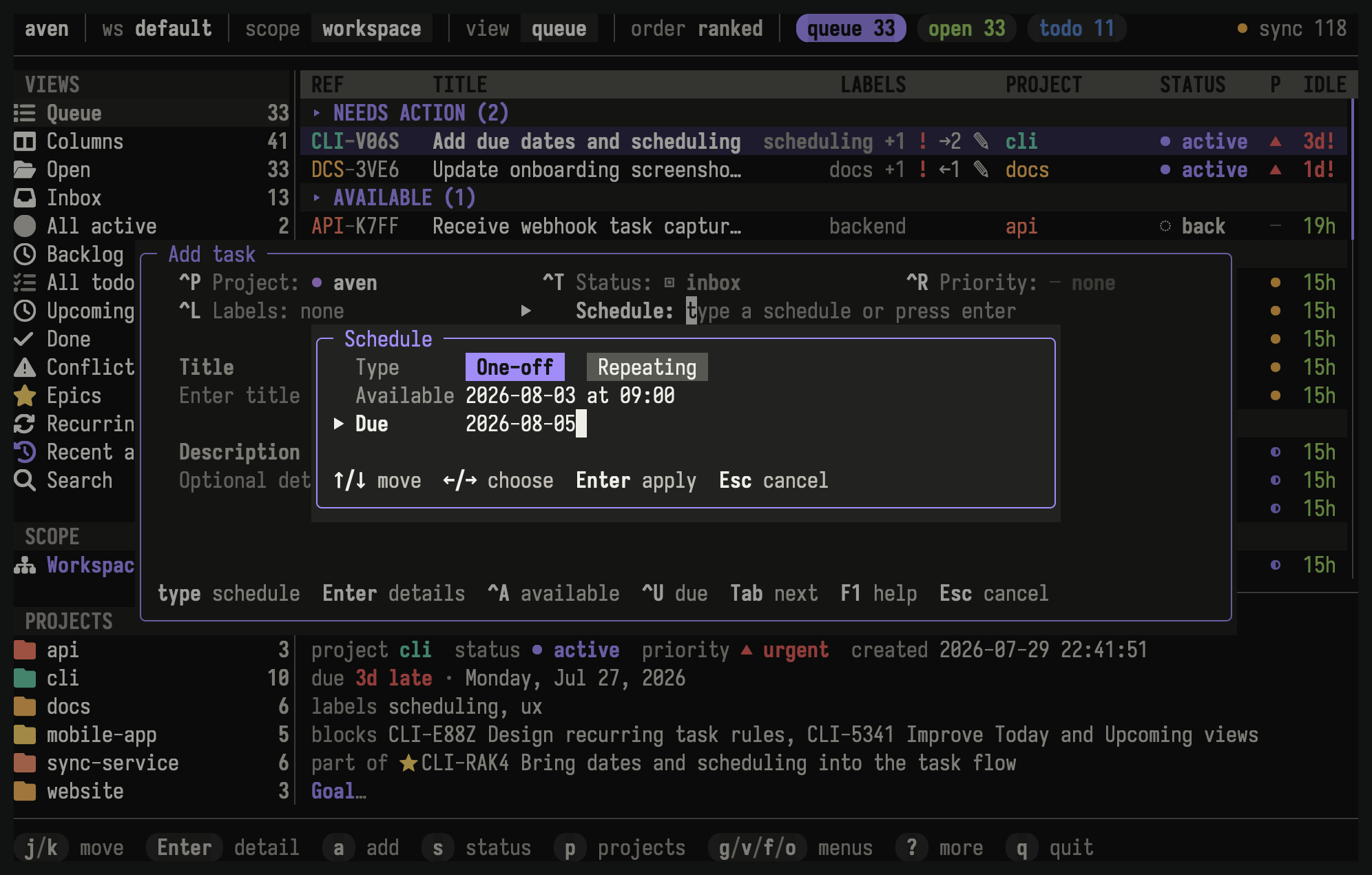
This task becomes available tomorrow and is due the following Friday.
Defer work until later
Section titled “Defer work until later”Set availability when a task should exist but should not compete for attention yet. Before that time, it appears under Upcoming rather than in normal active lists. Once it becomes available, it enters those lists automatically.
Press e a to change availability on the selected task. Enter a date, a date
and time, or a friendly expression such as tomorrow at 9am or next friday.
Set a deadline
Section titled “Set a deadline”Set a due date when work has a deadline. Due dates do not hide tasks. Available tasks with approaching deadlines receive more attention in Queue, and work that is due today or overdue appears in Queue’s Needs action group.
Press e u to change the selected task’s due date. Due dates are calendar dates,
so they do not include a time of day.
Combine availability and a due date
Section titled “Combine availability and a due date”Use both settings when work should appear at one time and finish by another. For example, make a report available on Monday and due on Wednesday.
Until Monday, the task stays under Upcoming. On Monday it enters normal views, with Wednesday still recorded as its deadline.
Find scheduled work
Section titled “Find scheduled work”Open Upcoming from the sidebar to review deferred tasks. Queue’s
Needs action group surfaces visible work that is due today or overdue. Press
o in other task views when you want to order visible work by due date.
A deferred task remains under Upcoming even when its deadline has passed. Use
aven list --upcoming --overdue to find those
tasks.
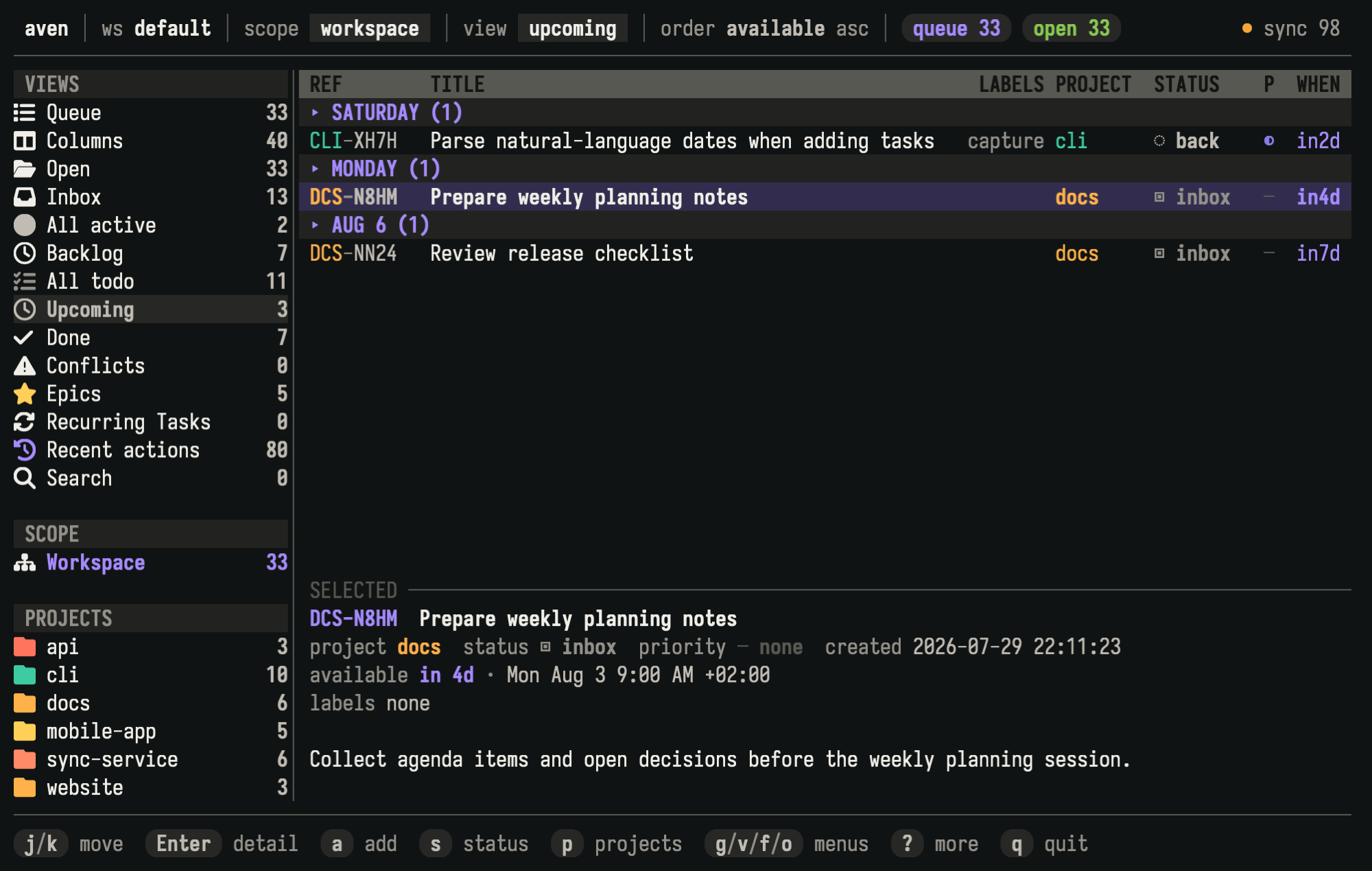
Upcoming groups deferred tasks by availability date. The preview shows project and planning details for the selected task.
Remove a date
Section titled “Remove a date”Press e a or e u and submit an empty value to clear the field. Availability
also accepts now, and due date accepts none. Press Space to mark several
tasks, then press Ctrl-d in the editor to clear the field on all of them.
Enter dates and times
Section titled “Enter dates and times”Aven accepts calendar dates and convenient expressions such as tomorrow,
next friday, and next monday. Bare weekdays are rejected because they are
ambiguous. Availability can include a local time, while due dates are
calendar-only.
See Temporal input for every accepted format.
Related pages
Section titled “Related pages”- Using the TUI covers the composer, task editing, views, and command discovery.
- Concepts defines availability and due dates in the task model.
- When work follows a repeating pattern, continue to Recurring tasks.
Reference
Section titled “Reference”See aven add,
aven edit, and the
list filters for scripts, agents, and terminal
workflows outside the TUI.